System Configuration
The information contained in this section will provide detailed information of each Admin section.
The admin tables are found within the Synapse Communication Landing Page. To access the Synapse Communication Landing Page, users must have a valid PACS account. Follow the steps below:
- Authenticate PACS and open a datasource
- Open a patient study
- Within the PACS viewer toolbar, locate and select the SynComm Landing Page icon, as shown below:

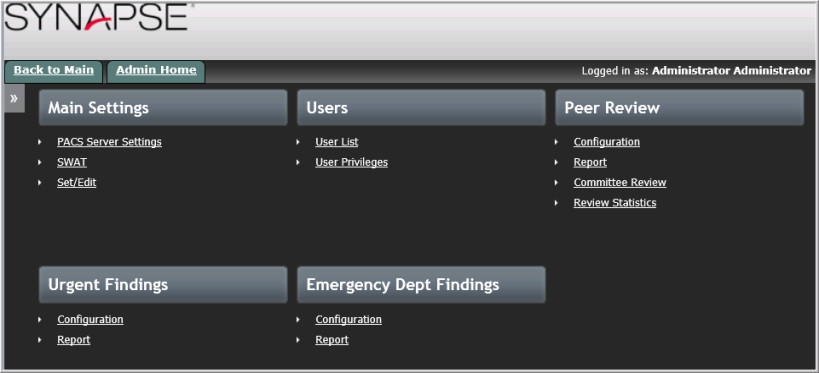
A new window will open to display the SynComm Landing Page. If the user is configured as an Admin user in SWAT, they will have access to the Admin tab on the SynComm Landing Page.
Note: The SynComm Landing Page may be saved as a desktop icon to access independently from PACS by dragging the URL from the SynComm Landing Page to the desktop. Or, users may right click on the desktop and create a shortcut link to http://<insertSynCommwebaddresshere>/ToolbarLanding.asp
The SynComm Landing Page uses Windows authentication to auto-authenticate. As long as the user logged into Windows has a matching SWAT account, the user will not be prompted for credentials when launching the SynComm Landing Page independent of PACS.