Creating a Peer Review
Radiologists may create & sign Peer Reviews from either a randomized worklist or Ad-hoc via the Synapse® PowerJacket during normal interpretation. In either case, Peer Review has been designed to require minimal clicks for the radiologist, achieving "one-click" reviews. The examples below demonstrates Peer Review from the Synapse® PowerJacket. Note - all configurations mentioned are available for customization by system administrators. Ie: default category, peer review questions, refer to committee, etc.
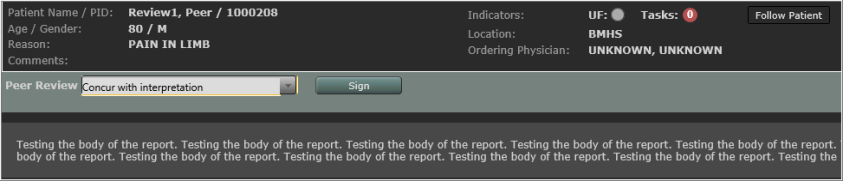
When peer review is available on a study for the logged in radiologist, the peer review banner will display with two options - the default category and the sign button.
Note: This is expecting that the default category would not have any additional questions built, the need to provide notes, or the need to refer to the committee.
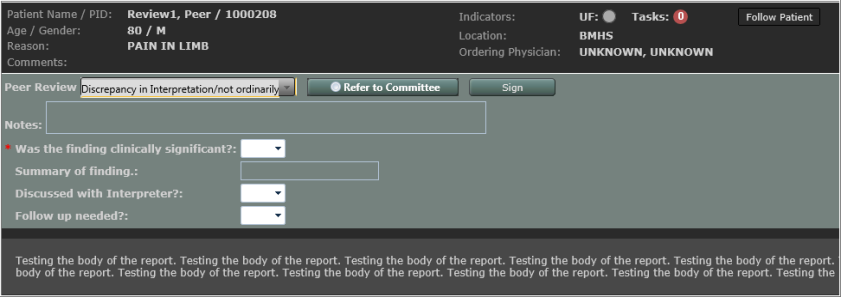
If the radiologist does not agree and needs to select a different category from the list, the banner will expand to display the notes field and any questions which may be configured to display with the selected category. Also, the Refer to Committee button becomes available. The circle within the Refer to Committee button indicates whether the category selected is pre-defined to be referred to the committee. (A filled-in circle is displayed if the category is configured to be sent to the committee. An open circle displays when the category is not configured to be sent to commitee by default.) A user may select theRefer to Committee button to send any study to the committee worklist for further review.
Once a peer review is signed, the entire peer review banner will be hidden and an indicator in the right corner will be added, displaying a green circle to the right of the abbreviation PR. Hovering over the circle will display the Peer Reviewed date.

When the system is configured to allow multiple peer reviews on a study and the study had been previously peer reviewed by a different radiologist, if the study is available for peer review for the logged in radiologist, the default peer review banner would be presented as well as the indicator that a peer review has been performed on the study.
If peer review is unavailable, the banner and indicator will not be present.
Peer Review Worklist
_809x427.jpg)
Pending reviews by modality display provides quick reference of how many reviews need to be performed. Selecting the number below a modality will filter the peer review worklist to display only the studies of the selected modality.
- On the Peer Review worklist, select anywhere on the row of a study to review.
- The section expands to display the original report.
Note: An Administrator may configure the system to auto launch images at the time the report is displayed (configured at Peer Review Settings). If not configured for autolaunch, users may select the image icon to launch images.
- If the default category displayed is correct for your review, select Sign/Next. The next study in the list will auto-expand for review. Peer review for the first exam is complete. If the default category is not correct, proceed to the next steps.
- Select the category from the pull-down.
Note: An Administrator may configure a default category to be auto-populated.
- Add notes associated with this category, if applicable.
- Answer any questions presented.
- If available and applicable, select Refer to Committee for any study needing further review by another committee. If not applicable, leave blank.
Note: Some categories will be configured to always Refer to Committee.
- Select Save if the report is not to be signed right away.
- If review is complete, select Sign/Next, which will load the next study on the list.
- Select Next to skip over a study for review. *Note, this will not remove the study from the list.
Ad Hoc Peer Review via the PowerJacket
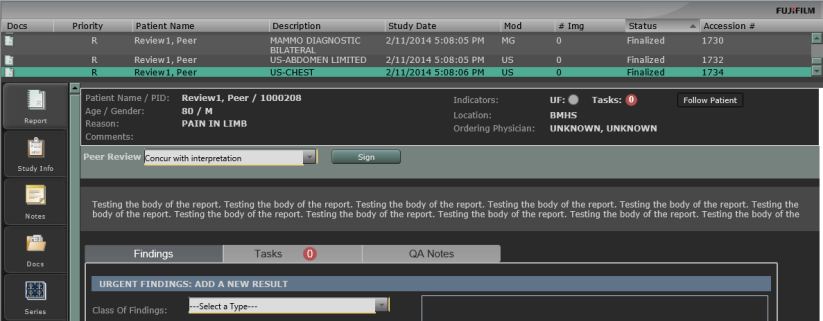
- Select a study with a status of Finalized.
- In the Power Jacket integrated Synapse Communications tab, the Peer Review section will display above the report, if Peer Review is available to the user on the particular study.
- If the default category displayed is correct for your review, select Sign/Next. The next study in the list will auto-expand for review. Peer review for the first exam is complete. If the default category is not correct, proceed to the next steps.
- Select the Peer Review category from the pull-down. *Note, an Administrator may configure a default category to be auto-populated.
- Add notes associated with this category, if applicable.
- Answer any questions presented.
- When review is complete, select Sign.